
Make a Christmas couple photo and a digital greeting card
You can make a Christmas picture together even when you do not have a good shared photo. Start with two separate portraits or one photo of both people, choose a festive scene, then turn the generated image into a digital greeting card.
1. Choose a Christmas scene for two people
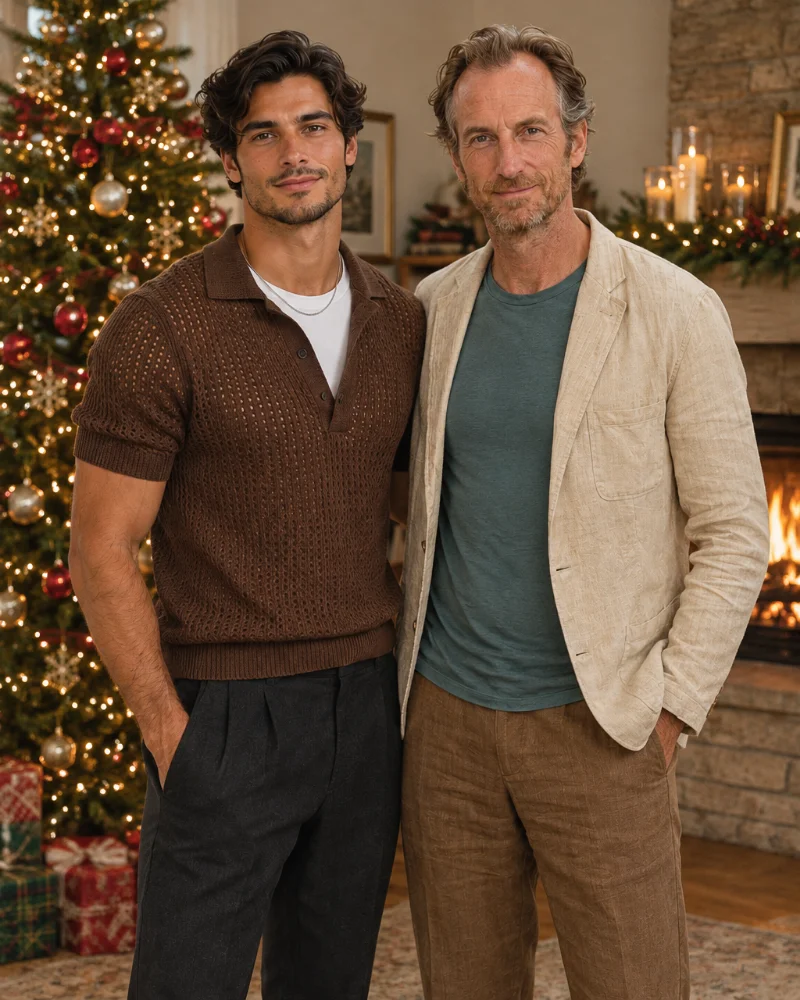
Cozy Christmas puts the pair beside a tree and fireplace. Matching Pajamas adds coordinated sleepwear and presents. Holiday Afterparty is a flash-lit portrait on a festive staircase, with dressier party styling.
Pick the mood that fits the people and the message. Couples, friends and two adult relatives can use these looks; you do not need to match the genders shown in a sample. The templates support exactly two adults, not a larger family, children or pets.
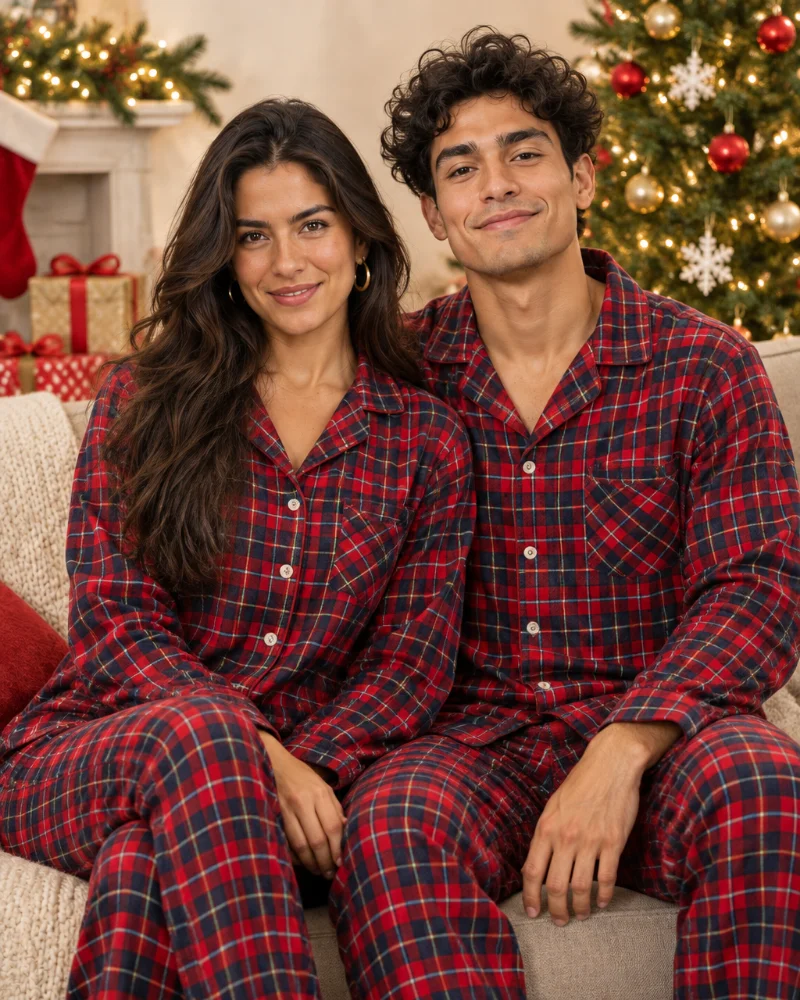
A relaxed, close-together portrait with coordinated pajamas and warm Christmas lights.
Try this look ↗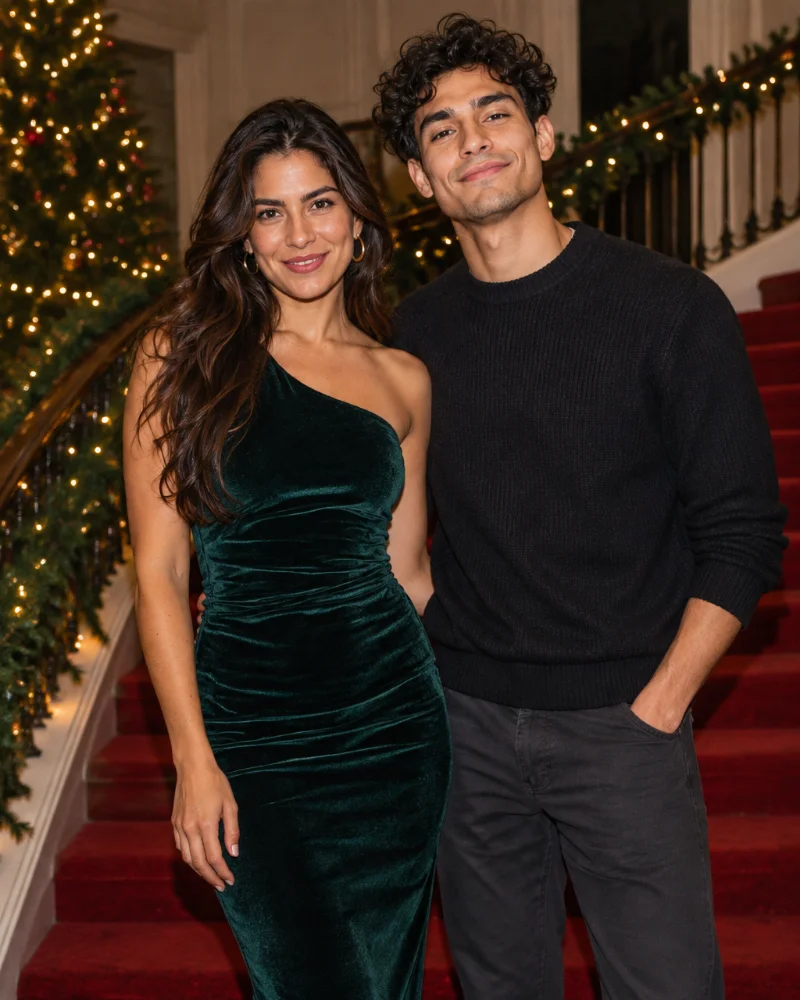
Dressier outfits, direct flash and a decorated staircase give the same season a night-out mood.
Try this look ↗Generated examples with fictional demo characters. Web previews; individual results vary. Tap an image to enlarge it.
2. Use two portraits or one photo together
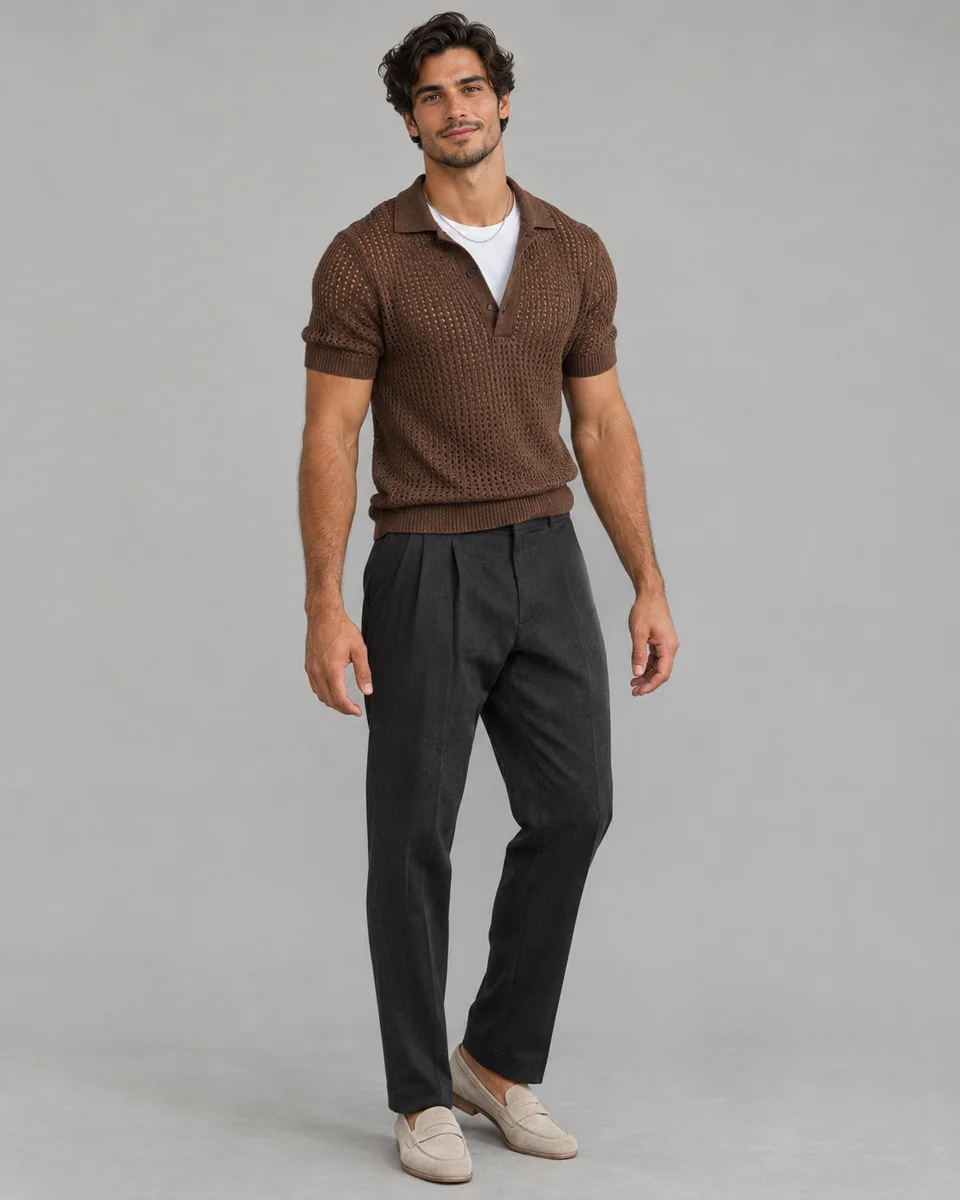
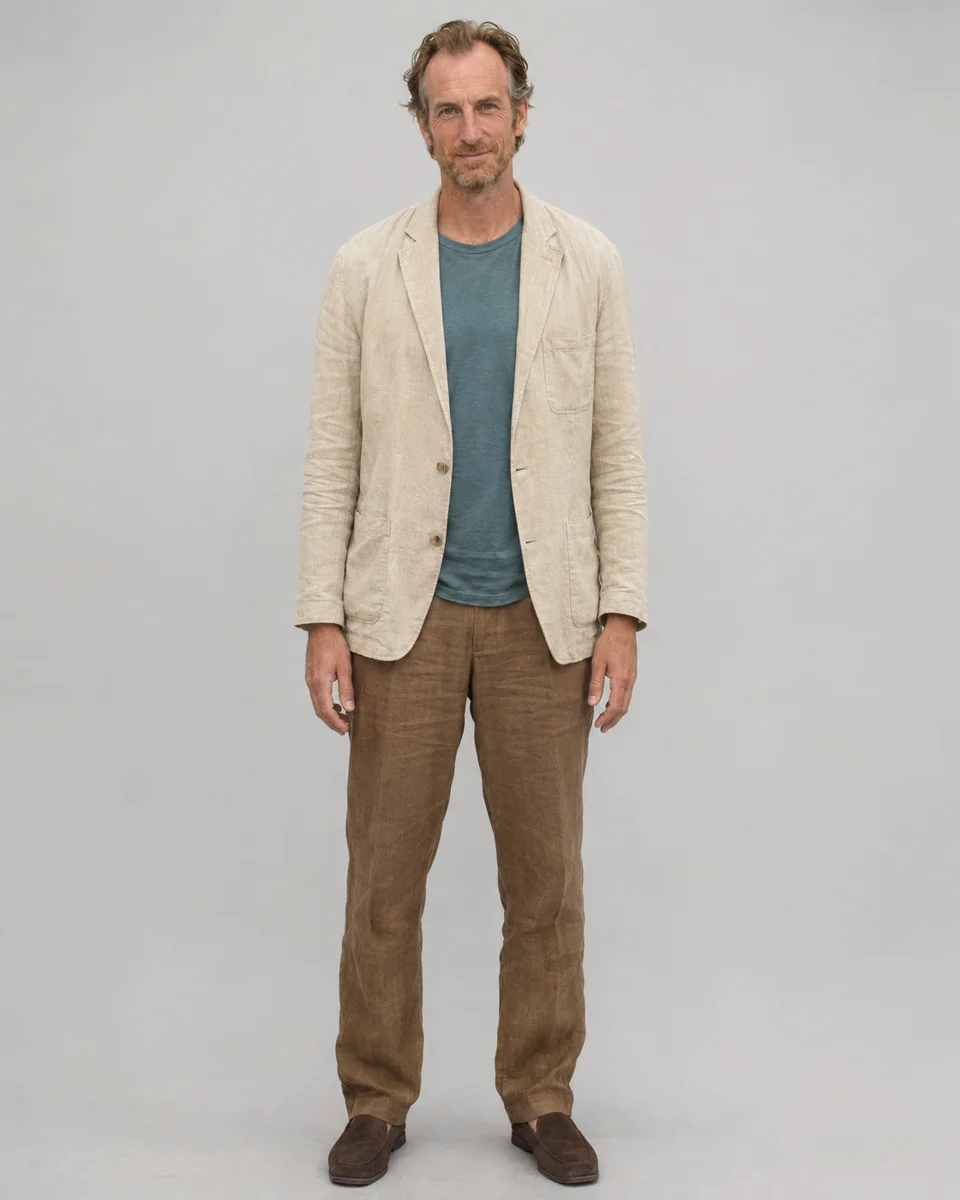
For separate portraits, upload one clear image of each person. Similar clarity and lighting make the pair easier to review, although their original backgrounds do not need to match. Avoid uploading two photos of the same person when the scene needs two different people. Use the same upload area for either input type; with separate portraits, check the Left and Right labels and change their order if needed.
For a photo together, use one where both faces are easy to see and neither is tiny or hidden behind the other. The upload area detects people; review the selected faces before creating. You can correct a missed face or an unwanted background person. You do not have to cut a shared photo into separate portraits or sort the pair. Christmas group photos use automatic arrangement.
Two separate photos, one Christmas portrait
3. Choose the photo format before making the card
Cozy Christmas, Matching Pajamas and Holiday Afterparty all support four photo formats:
- Cover · 4:5: the default for an upright post with room for the person and scene.
- Square · 1:1: a full square scene for posts or a profile picture. If your profile uses a circular crop, check that the face fits before saving it there.
- Portrait · 9:16: a tall composition for vertical sharing or a phone background.
- Landscape · 16:9: a wide composition with more room for the setting, or a desktop wallpaper.
The photograph keeps this ratio when downloaded on its own. A holiday card has a separate 4:5 layout that fits the complete photo, so you can make a card from a Square, Portrait or Landscape result too. Cover is a useful starting point when the greeting card is your main goal.
Christmas photos currently use Standard resolution at 4 credits per image for both people; HD is not available for these looks. Generating another format requires a new paid or eligible free creation. Editing the card text does not.
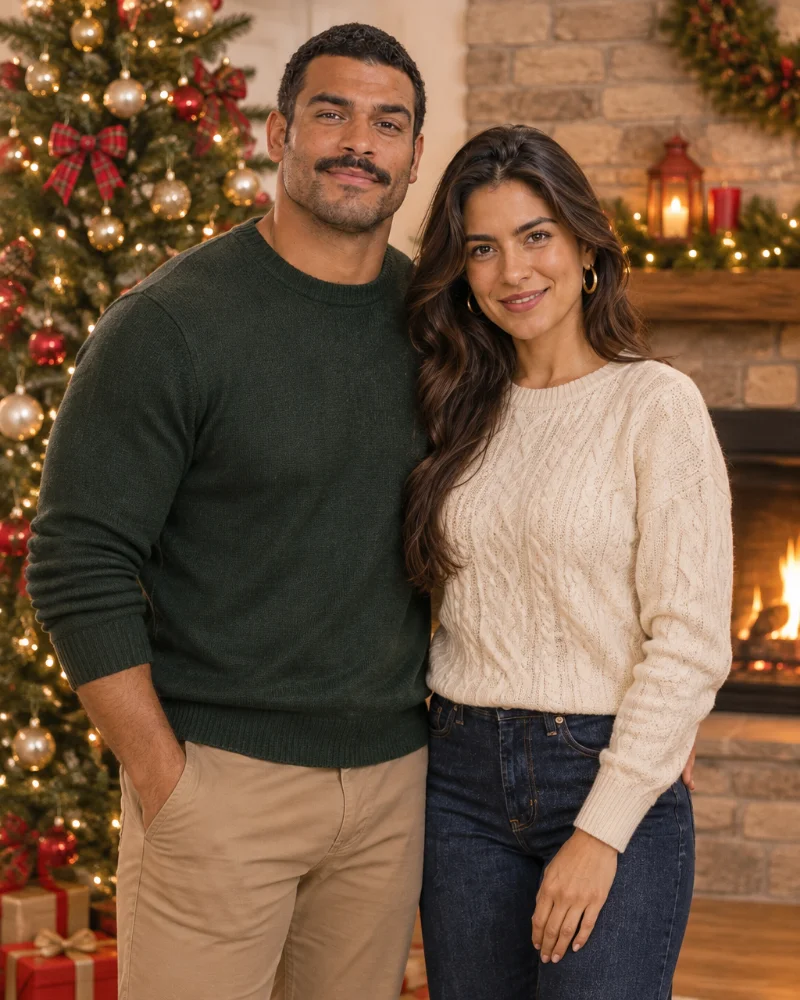
Soft knitwear, a warm fireplace and an easy smile make a quieter greeting. This Cover composition keeps both people and the Christmas setting visible.
Try this look ↗Generated examples with fictional demo characters. Web previews; individual results vary. Tap an image to enlarge it.
4. Generate and check the portrait
Open the Christmas photo generator in card mode, select a look and add the photos. Choose Size, then check Standard and the total in the bottom summary before creating. Any limited free Standard offer is shown only while slots are available; signing in does not reserve a slot. See the one-time credit packs.
Check both identities, the number of people and any obvious hand or body errors. Outfits adapt to the selected scene: coordinated pajamas can replace everyday clothes, and an afterparty can use dressier styling. Exact knit patterns, colors or the original outfits are not required. A photo together can place the people differently from the reference, so a natural position change is not itself a defect. Report clear quality problems within seven days; see the delivery policy.
5. Add your greeting and signature
Once the portrait is ready, open “Make a holiday card”. Enter a greeting and, if you want, a signature. Start with a short line such as “Happy holidays!” or “Wishing you a cozy Christmas”, then add the names you want to show.
The text is laid out over the card in your browser, so you can correct spelling and preview it without regenerating the portrait. Check line breaks and readability before exporting. Try the same editor below on a sample; editing this example will not upload your photos or create a paid task.
Turn your Christmas photo into a digital card
Add a greeting and signature after generating your portrait. Download the photo on its own or export a 4:5 PNG card to send to someone. Changing the words uses the same image, with no new generation or extra credits.
Try the card editor on this Cozy Christmas sample. It uses fictional demo characters, not your uploaded photos.
Make a holiday card
A digital image for sharing. Printed cards, envelopes and print-size layouts are not included.
6. Save the photo and the finished card
Keep both files if you want a clean portrait for a post and a greeting for a private message. The photo keeps your chosen aspect ratio. The card fits the full image inside a 4:5 layout and downloads as a 1024 × 1280 PNG. Choosing a wide or tall source photo does not change that card size. Editing the greeting or downloading again does not use more credits. Save your generated result within 30 days of delivery.
The current card flow starts with a Lookhatch-generated portrait. It is not an editor for importing any existing photo, a printed-card shop or a 5×7 print layout. Check the final file in your messaging or social app before sending, because those apps may resize it.
For a single-person holiday look, follow the candy cane portrait guide. For an illustrated scene outside the holiday theme, see how to make GTA 6-style photos.
Create a Christmas photo card ↗Make the most of your photos
How to make GTA 6-style photos from your own pictures
Choose from seven illustrated scenes, compare four formats and find out when to use Standard or HD.
Read the guide ↗How to make an AI candy cane Christmas photo
Turn one photo into a peppermint studio portrait, choose its format and add a digital greeting.
Read the guide ↗