
How to make an AI candy cane Christmas photo
The candy cane Christmas photo look combines a peppermint prop, oversized festive decorations and a styled studio portrait. This guide shows how to make that kind of picture from one clear photo, and what to check before sharing it.
What makes the candy cane look recognizable?
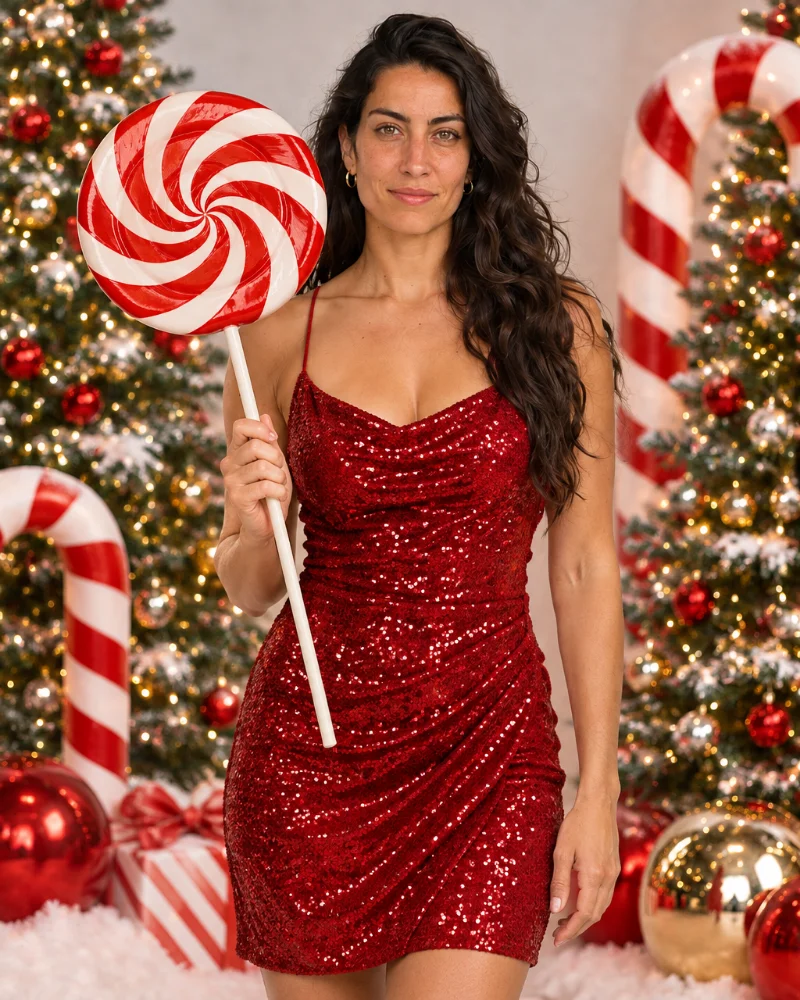
The visual cues are the candy-themed set, a peppermint swirl, evergreen branches and ornaments. It is a new Christmas photoshoot-style image, not a candy sticker added to your original photo. The background, pose, clothing and lighting can all change.
Lookhatch’s Candy Cane Studio is a single-person look for an adult. It does not require one particular gender or the exact clothing in the sample. Choose this look for a playful solo portrait; choose a two-person scene if you want to include a friend or partner.
One portrait, a candy cane Christmas photoshoot
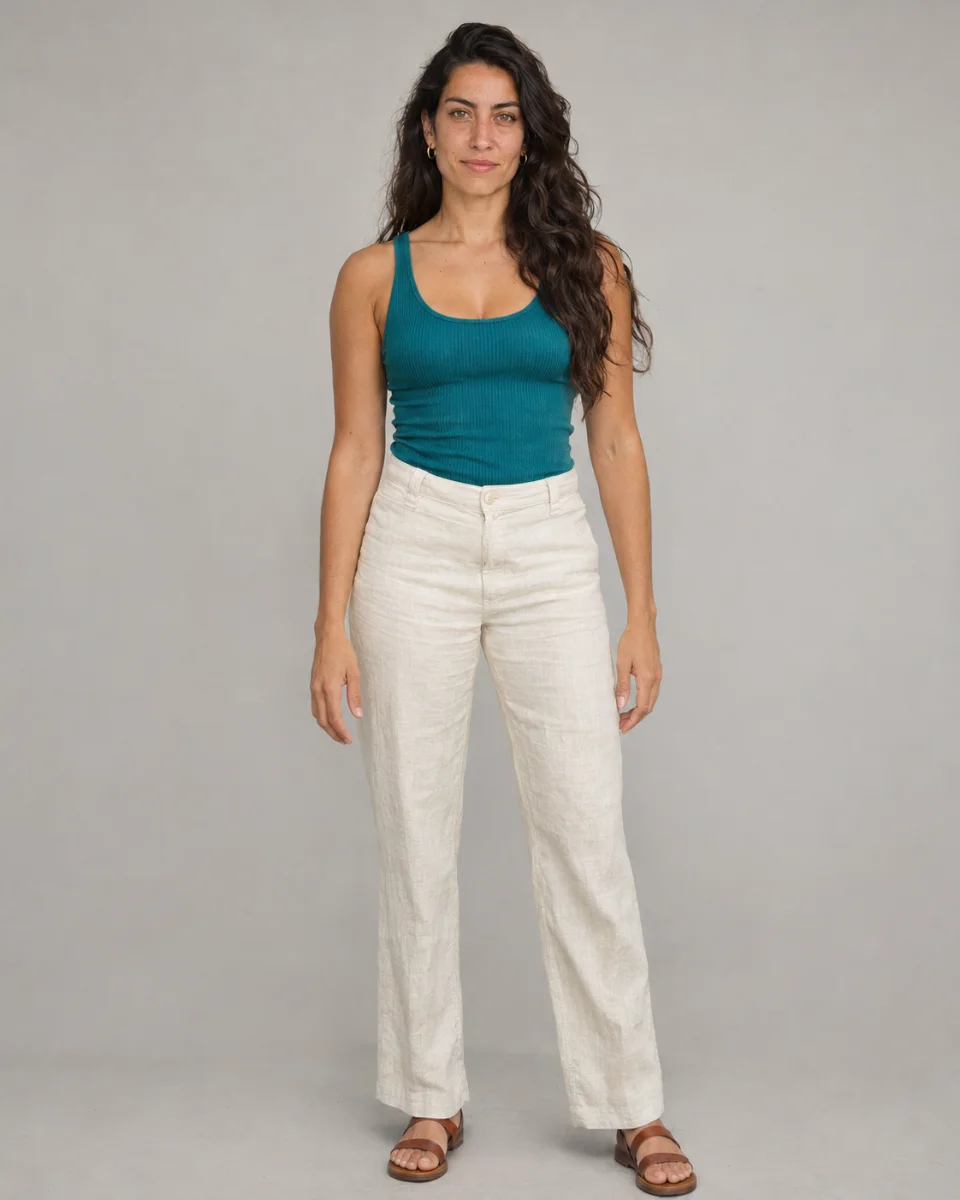
1. Pick a portrait that shows your face clearly
A well-lit phone photo is a useful starting point. Keep the face unobstructed and avoid tiny faces, sunglasses, motion blur and heavy retouching. A simpler reference makes it easier to judge whether the generated person still looks like you.
You do not need to buy a holiday outfit or find a Christmas backdrop first. The template adapts the outfit and setting. Use an adult reference that you have permission to use; the current solo template is not designed for children, pets or a whole family.
2. Choose the shape for your Christmas photo
Candy Cane Studio supports the same four formats as the other Christmas looks. Choose in Size before generating:
- Cover · 4:5: the default for an upright post with room for the person and scene.
- Square · 1:1: a full square scene for posts or a profile picture. If your profile uses a circular crop, check that the face fits before saving it there.
- Portrait · 9:16: a tall composition for vertical sharing or a phone background.
- Landscape · 16:9: a wide composition with more room for the setting, or a desktop wallpaper.
Each format is a new composition of the candy-themed scene. Standard costs 4 credits per image; HD is not currently available for Christmas looks. To make a digital greeting, any of these photos can go inside the separate 4:5 card layout after generation.

Red sequins, warm lights and a peppermint swirl make the portrait feel festive at a glance. Cover leaves room for the outfit and the candy prop.
Try this look ↗Generated examples with fictional demo characters. Web previews; individual results vary. Tap an image to enlarge it.
3. Generate the festive portrait
Open the AI Christmas photo generator with Candy Cane selected. Add your photo, check the selected person and choose your Size. Sign in, then confirm Standard and the cost in the bottom summary before creating.
The template supplies the scene, so no prompt is required. When a limited free Standard slot is available it appears on the creation screen; signup alone does not reserve one. You can browse other Christmas looks before creating without spending credits.
4. Check the face and the candy prop
Compare the finished face with the reference, then check the fingers, the prop and the edges around the person. The image should read as a festive peppermint studio scene. Clothing, pose and the arrangement of decorations can adapt to the format; they do not need to copy the sample exactly. A mixed identity or an unusable hand or prop is a reason to request review.
If a clear quality defect makes the result unusable, report it within seven days for review. A preference for another outfit or mood is a new creation rather than an automatic free retry. The delivery policy explains the distinction.
5. Share the portrait or add a holiday message
Download the portrait as it is, or open “Make a holiday card” on the result. Add a short greeting and an optional signature, review the rendered text, then download the 1024 × 1280 PNG card. The original photo keeps its chosen ratio; the card fits the whole photo into its own 4:5 layout. Changing the words reuses the existing image and does not consume another generation.
Keep the greeting short enough to read on a phone. This is a digital card, not a printed card order or a guaranteed print-size layout. For the full card workflow, see the Christmas photo and greeting card guide.
For a quieter setting, Cozy Christmas uses a fireplace and tree. Matching Pajamas gives two people coordinated sleepwear, while Holiday Afterparty uses a festive staircase and direct-flash party styling. All three need two adult people. They are different looks, not edits to the existing candy portrait.
Make a candy cane portrait and card ↗Make the most of your photos
How to make GTA 6-style photos from your own pictures
Choose from seven illustrated scenes, compare four formats and find out when to use Standard or HD.
Read the guide ↗Make a Christmas couple photo and a digital greeting card
Pick a festive scene and photo format for two people, then export your portrait and a digital card.
Read the guide ↗